

This guide explains how to join a meeting on an iPhone using your web browser instead of downloading the app.
- Open the Meeting Link
- Tap the meeting link provided in your email or message.
- Your iPhone should automatically open the link in Safari or another browser.
- If the link does not open correctly, copy and paste it directly into your browser’s address bar.
- Bypass the App Download Prompt
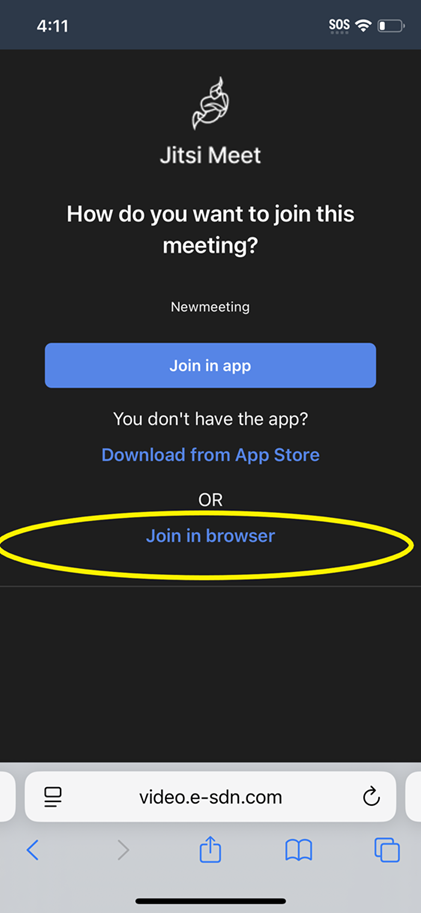
- When the meeting page loads, you may see a prompt asking you to download the app.
- Do not download the app.
- Instead, choose one of the following options:
- Tap the “Launch in Web” or “Continue on Web” button if it appears.
- If the button is not visible:
- In Safari, tap the “AA” icon in the address bar.
- In Chrome, tap the three dots menu.
- Select “Request Desktop Website.”
- This forces the browser to load the full web version of the meeting.
- Allow Camera and Microphone Access
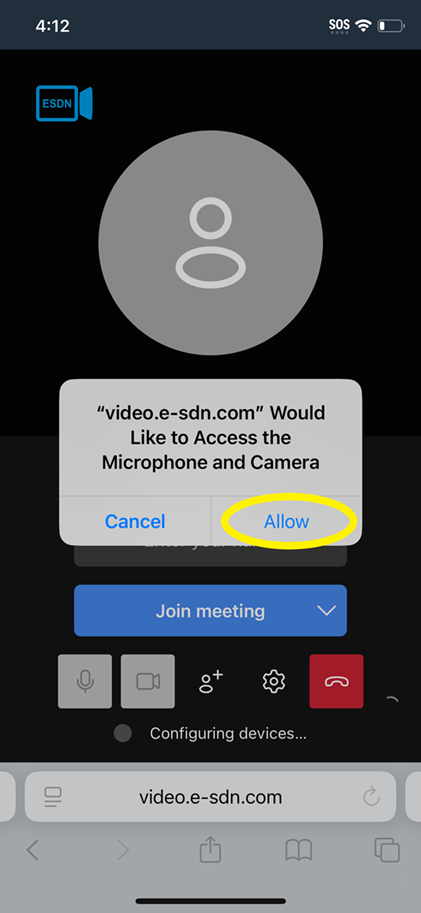
- As the meeting loads, your iPhone will ask for permission to use your camera and microphone.
- Tap Allow for both prompts.
- If you accidentally deny permission:
- Tap the lock icon or camera icon near the address bar.
- Manually enable camera and microphone access.
- Enter Your Name
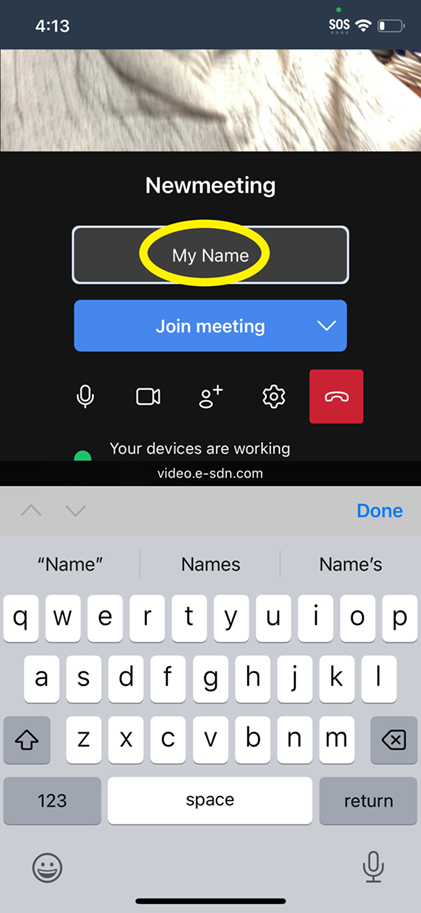
- Locate the “Enter your name” field on the meeting page.
- Type the name you want displayed during the meeting.
- Join the Meeting
- Tap the blue “Join Meeting” button.
- Wait a few moments while the browser connects you to the meeting.
- Use Meeting Controls
- During the meeting, use the on-screen controls to mute/unmute, turn video on/off, or access settings.
- Tap the three-dot menu for additional options such as:
- Tile view
- Raise hand
- Additional settings
- Verify iPhone Compatibility
- Make sure your device is using:
- iOS 14.3 or later
- Safari 15.4 or newer for best performance
- Make sure your device is using:
- Skip the App Prompt Completely (Optional)
- To avoid the app download screen entirely, add the following text to the end of the meeting link:
#config.disableDeepLinking=true
- To avoid the app download screen entirely, add the following text to the end of the meeting link:
Quick Troubleshooting
- Camera or microphone not working
- Check that permissions are enabled in the browser settings or under:
- Settings → Safari → Camera/Microphone
- Check that permissions are enabled in the browser settings or under:
- “Launch in Web” button missing
- Use Request Desktop Website from the browser menu.
- Meeting page keeps redirecting to the app store
- Add:
#config.disableDeepLinking=true
to the end of the meeting URL.
- Add:
- Audio or video freezing
- Move closer to your Wi-Fi router or switch to a stronger network connection.
- Buttons appear too small
- Rotate your iPhone to landscape mode for easier navigation.



0 Comments