

This guide explains how to join a enlighten web based video meeting on an Android phone using either a web browser instead of the mobile app.
Join Using a Web Browser (No App Required)
- Open the Meeting Link
- Tap the meeting link provided in your email or message.
- Your Android phone should automatically open the link in Chrome or your default browser.
- If the link does not open automatically, copy and paste it into your browser manually.
- Ignore the App Download Prompt
- When the page loads, you may see a large button that says:
- “Join in app”
- “Download the app”
- Do not download the app if you want to use the browser version.
- When the page loads, you may see a large button that says:
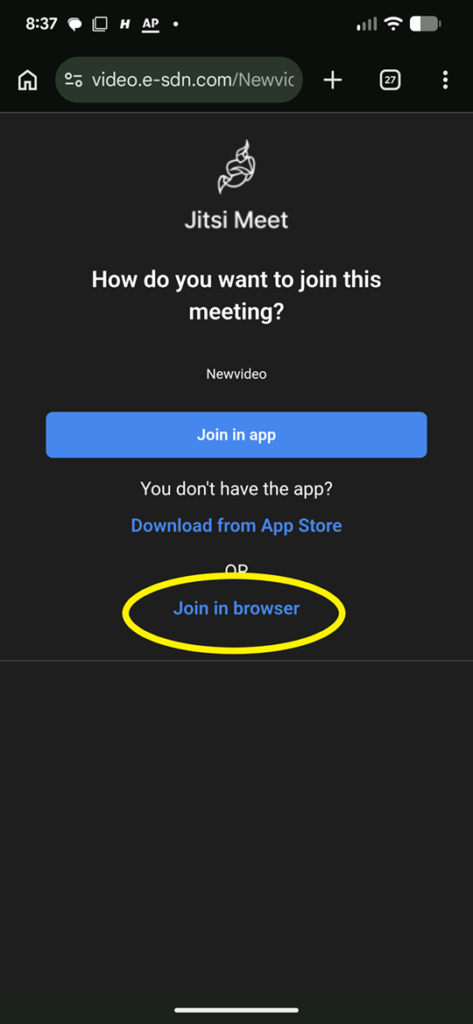
- Launch the Meeting in Your Browser
- Look near the bottom of the page for a small link that says:
- “Launch in web”
- “Join in browser”
- Tap that link if it appears.
- Look near the bottom of the page for a small link that says:
- Enable Desktop Mode (If Needed)
- If the browser keeps asking you to install the app and no web option appears:
- Tap the three vertical dots in the upper-right corner of Chrome.
- Check the box labeled “Desktop site.”
- This makes the browser display the full desktop version of the meeting page.
- If the browser keeps asking you to install the app and no web option appears:
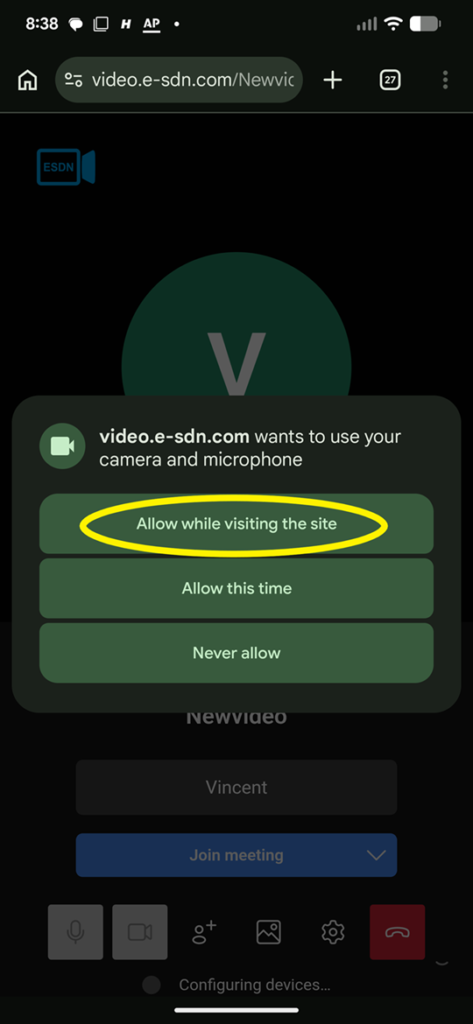
- Allow Camera and Microphone Permissions
- When Android asks for access to your camera and microphone, tap Allow.
- If you accidentally deny permission:
- Tap the Two Lines with o– next to the website address and to the right of the home icon.
- Manually enable camera and microphone under the permissions area
- Enter Your Display Name
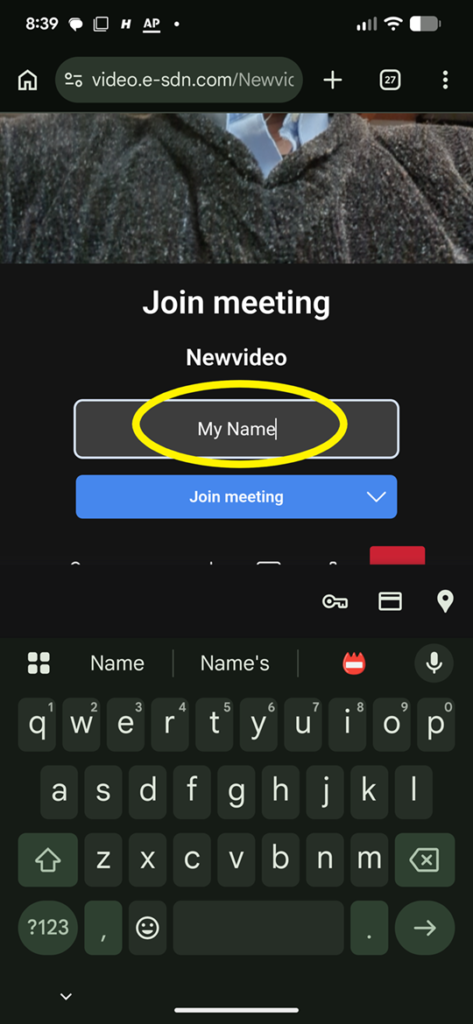
- Type your name into the display name field before joining the meeting.
- Join the Meeting
- Tap the blue “Join Meeting” button to enter the call.
Quick Troubleshooting
- Browser keeps redirecting to the app store
- Enable Desktop site mode in Chrome.
- No sound or microphone not working
- Check Android permissions under:
- Settings → Apps → Chrome or Jitsi Meet → Permissions
- Check Android permissions under:
- Camera not working
- Make sure another app is not currently using the camera.
- Cannot find “Launch in web”
- Scroll to the bottom of the page or enable Desktop site mode.
- Meeting freezes or disconnects
- Switch to a stronger Wi-Fi connection or move to an area with better cellular signal.
- Buttons are too small in browser mode
- Rotate the phone sideways into landscape mode for easier controls.



0 Comments