
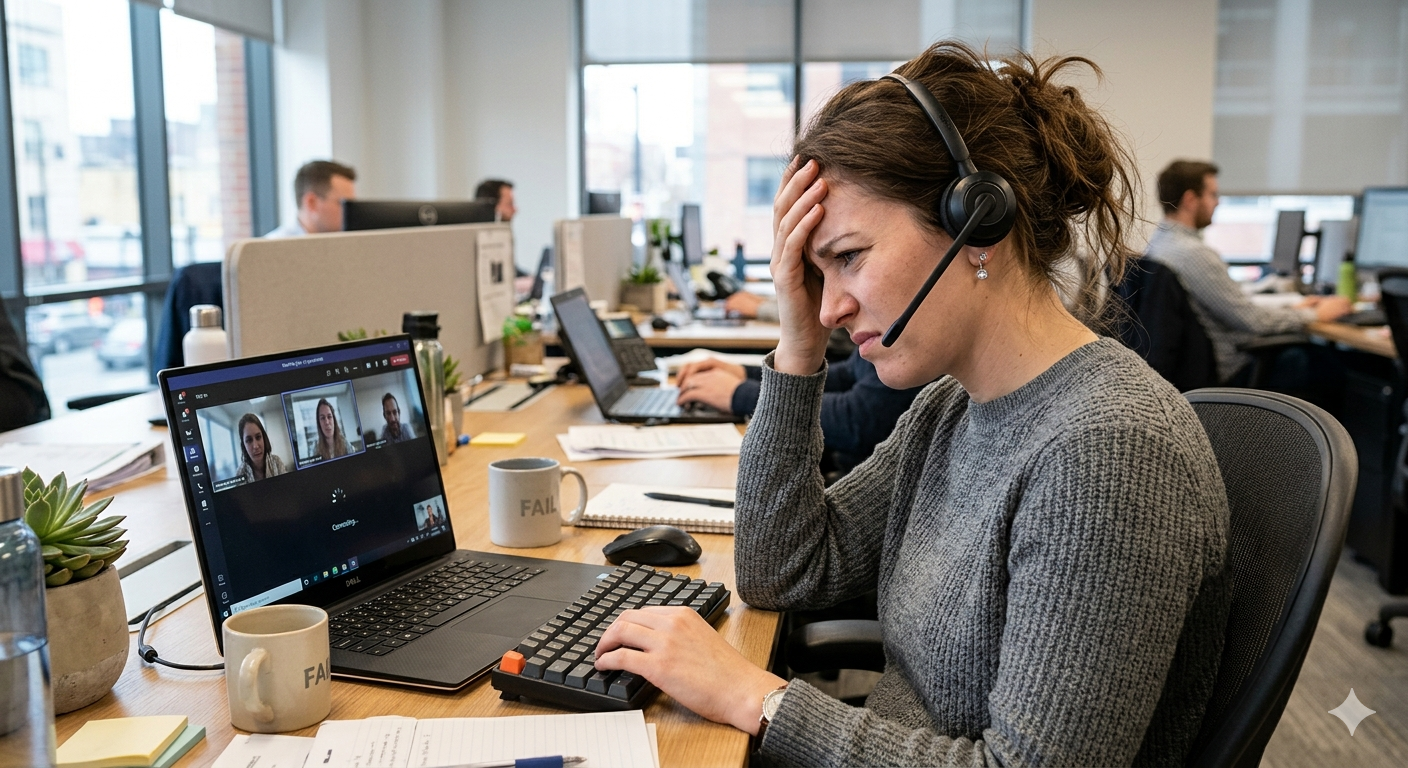
Trouble shooting the Camera and Mic if not working
Using web based Video Conferencing depends on the Browser
–Starting info– Most major modern web browsers support HTML5 audio and video for video conferencing, but they do it through a specific sub-technology called webRTC
Instead of using the standard <video> tag meant for streaming recorded content, video conferencing relies on WebRTC APIs. This standard allows browsers to capture your camera and microphone, transmit that data instantly, and play back the other person’s live feed without requiring external downloads or plugins.
Individual Browsers are different, Google Chrome, Edge and FireFox use FullVP8 / VP9 / H.264 and are optimized for WebRTC tools or they provide Native support across all desktop platforms. Apple Safari Browser H.264Heavily prioritizes H.264 for hardware battery efficiency.
For More information on VP8 https://en.wikipedia.org/wiki/VP8
–However Not all browsers support the video conference with the same codex Because video conferencing requires real-time rendering, two browsers connecting to each other must agree on a shared video language (codec) VP8 video codex For example Safari Do not use VP8 or VP9 because Apple Safari tightly restricts or poorly optimizes VP8/VP9 to protect iPhone battery life, most video conferencing platforms fallback to H.264 . To get a quality video call
So please make sure all the Participants are using a modern browser and takes the following Steps.
1.) Ask what the client is planing on using for the video call? A Laptop or Desktop ?
– Cell Phone or Tablet go to Cell phone links I-Phone or Android
2.) Does the client have access to the most recent Chrome, Firefox or Safari browsers on there desktop.
3.) Does the client have a Headset/ Mic connected to there computer? Have them check USB ports
4.) Does the client have a webcam on there computer? Have them check the USB port
5.) Please make sure the client is going to a test site to make sure the video is working like www.e-sdn.com or https://webcammictest.com/
To Trouble shoot the Mic or Camera once at our site please follow the following
Step 1 Check the Mic
Have the client try more then one USB port if they are having issues with the Mic.
- Check the Mute Switch: Ensure your microphone or headset doesn’t have a physical mute switch toggled on.
- Re-seat the Cables: Unplug your microphone and plug it back in. If you are using a USB microphone, try a different port.
- Separate Audio Jacks: If you are using an analog 3.5mm jack, ensure it is plugged into the dedicated microphone port (usually pink), not the headphone jack
Select Your Input:
- Windows: Go to Settings > System > Sound. Under the “Input” section, select the exact microphone you are using from the dropdown menu.
- Mac: Go to System Settings > Sound > Input and select your desired microphone from the list.
- Adjust the Volume: While in your system’s sound settings, test the mic by speaking. Adjust the input volume slider so that the meter reacts to your voice without peaking into the red
Privacy and App Permissions
- Windows: Go to Settings > Privacy & security > Microphone. Ensure “Microphone access” and “Let apps access your microphone” are both turned on.
- Mac: Go to System Settings > Privacy & Security > Microphone. Ensure your browser (e.g., Chrome, Safari, Edge) is toggled on.
- Browser Permissions: When you join a web call, your browser will typically ask for permission to use your camera and mic. Make sure to click
Step 2 Check the Camera
Physical Hardware
- Check the Shutter: Slide open any physical privacy covers or stickers blocking the lens.
- Inspect the Cable: Unplug external USB webcams and reconnect them to a different port.
- Look for Lights: Speak or move to see if the small LED indicator next to the camera turns on
System Permissions
- Windows: Go to Settings > Privacy & security > Camera. Turn on “Camera access” and allow your browser to use it.
- Mac: Go to System Settings > Privacy & Security > Camera. Toggle the switch next to your web browser to On
Local App Test
- Windows: Open the built-in Camera app from the Start Menu to see if your video displays.
- Mac: Open the built-in Photo Booth or FaceTime app to check if the green light activates and shows your video
Browser Check
- Address Bar Icon: Look for a camera icon with a red “X” or slash in your browser’s address bar. Click it to grant access.
- Site Settings: Click the padlock icon next to the website URL and flip the Camera toggle to Allow.
Step 3
Open a new browser if having issues with the original conference link. Allot of Browsers store cash files of past web pages on the local desktop and are not refreshing a past visit to the site. So a new Browser such as Firefox, Chrome or Opera will help clean the meeting.
.
Step 4
Please make sure that when they are hosting as a member they use a unique name like meeting03122020 No spaces or special characters are allowed when typing in “Start a new meeting”
.
Step 5
P lease make sure that the client clicks allow when the browser pops up with a prompt to ask if you want to allow video and Audio to be captured from the legalconference.com site” YES
.
Step 6
O n the site https://video.legalconference.com please have the client click on the bottom right side with the 3 dots A Menu will appear with the several options Please have them click on “settings.”
Step 7
Now a new pop up menu will appear in the center of there screen with new settings, Please have them navigate to “devices”. They should see a small live video screen and 3 drop down menus to chose from-
Step 8
Once On Devices ask if they see themselves in the live video screen on the right? If they do not see themselves in the video they have chose from one of the camera options on the top drop down menu to the left. One of the options will work if they have a functioning Camera. If they do not show up with any of the options then they may not have a functioning camera…. Stop refer to Communication guide
.
Step 9
Now check the Mic. Below the video screen is a audio level that will move when they talk If they do not see the level move the mic is not selected. Have them look to the middle drop down menu to select a microphone that will display there audio levels. Test different devices on the computer until the levels begin to move.



0 Comments